> ## Documentation Index
> Fetch the complete documentation index at: https://nango-wari-migrated-bigcommerce-docs.mintlify.site/llms.txt
> Use this file to discover all available pages before exploring further.
# Domo - How do I link my account?
# Overview
To authenticate with Domo, you need:
1. **Client ID** – The public identifier for your Domo API client.
2. **Client Secret** – The secret that authenticates your client; treat it like a password and keep it secure.
This guide walks you through creating an API client in Domo and obtaining your Client ID and Client Secret.
### Prerequisites
* You must have a Domo account.
### Instructions
#### Step 1: Creating your API client
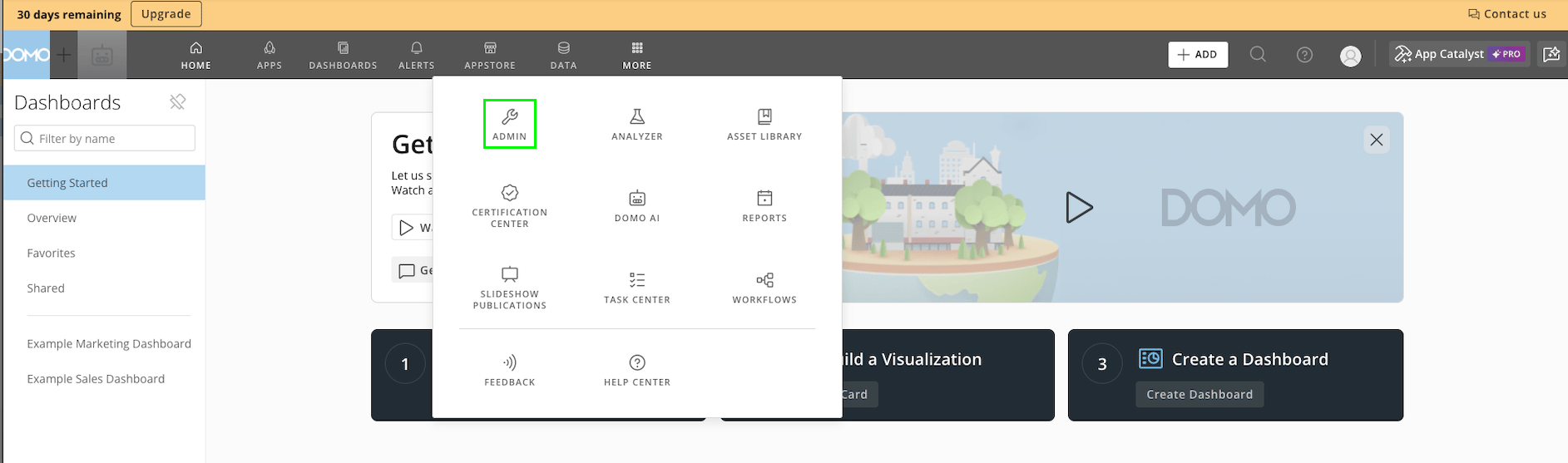
1. Log in to [Domo](https://www.domo.com) and go to **Admin** → **Authentication** → **API Clients**.
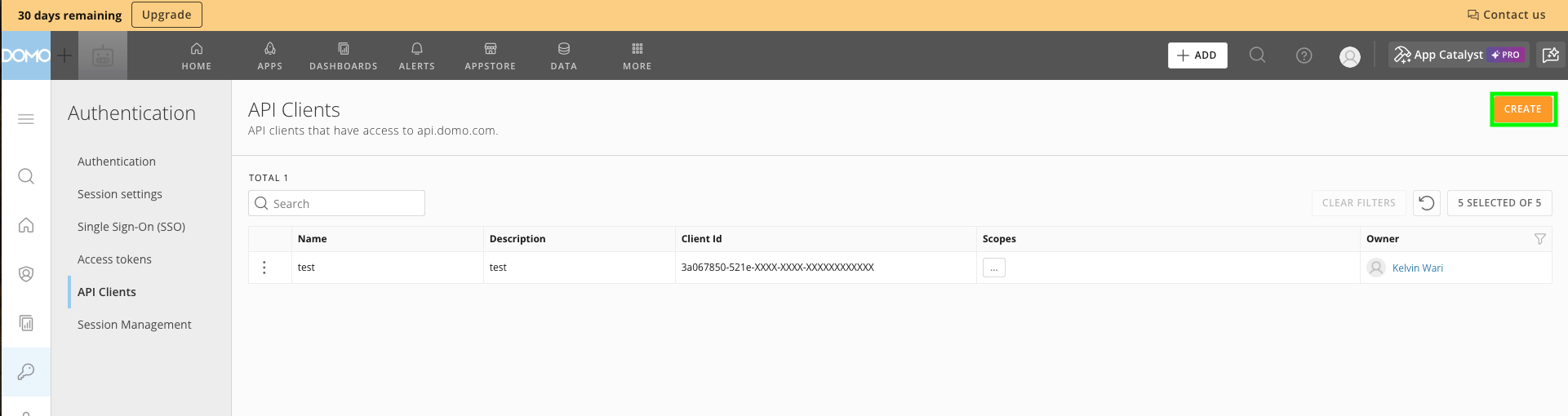
 2. Click **Create** to open the creation modal.
 3. Enter a **unique name** and **description** for your client, and select the **scopes** to grant the client.
4. Click **Create**. After confirmation, the **Client ID** and **Client Secret** are shown.
3. Enter a **unique name** and **description** for your client, and select the **scopes** to grant the client.
4. Click **Create**. After confirmation, the **Client ID** and **Client Secret** are shown.
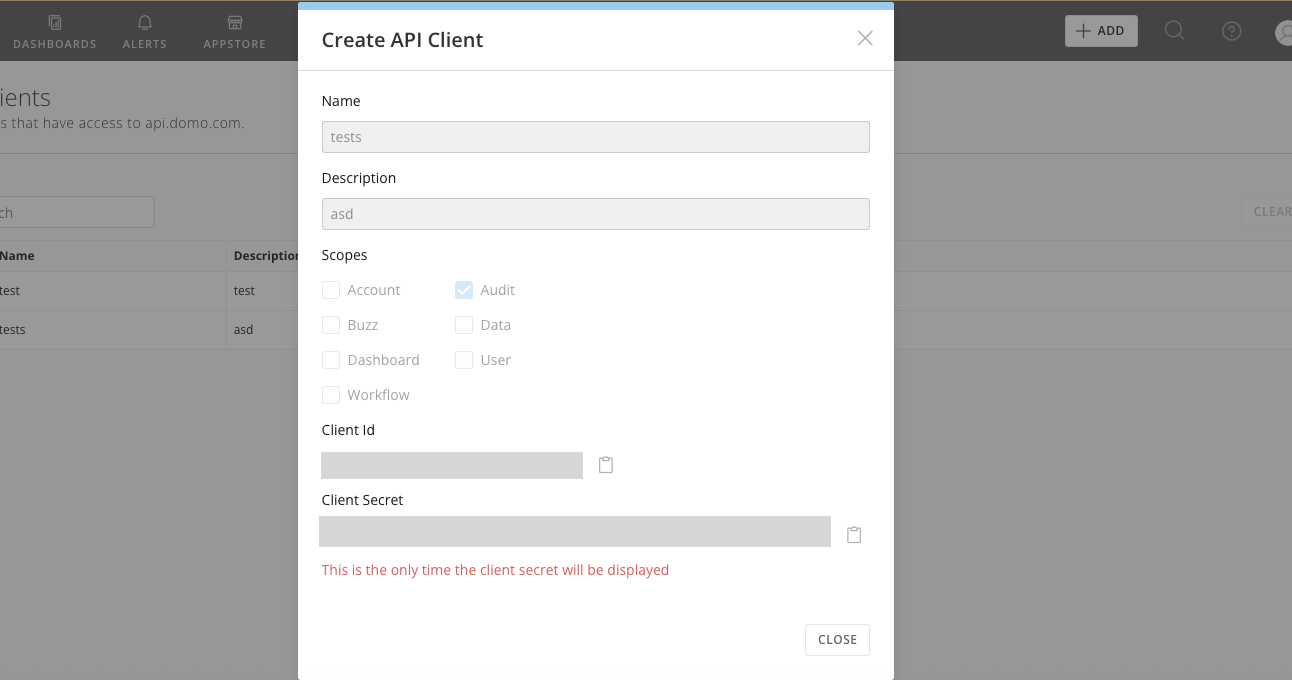 The client credentials are displayed only once. Copy and store them securely immediately.
#### Step 2: Enter credentials in Nango
Once you have your **Client ID** and **Client Secret**:
1. Open the form where you need to authenticate with Domo.
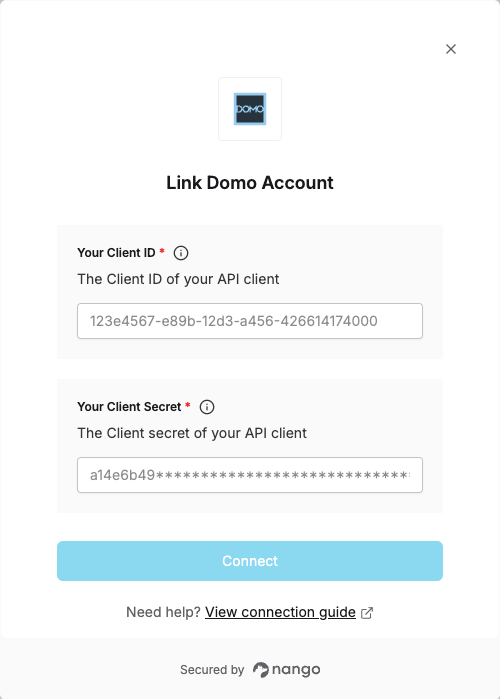
2. Enter your **Client ID** and **Client Secret** in their respective fields.
3. Submit the form, and you should be successfully authenticated.
The client credentials are displayed only once. Copy and store them securely immediately.
#### Step 2: Enter credentials in Nango
Once you have your **Client ID** and **Client Secret**:
1. Open the form where you need to authenticate with Domo.
2. Enter your **Client ID** and **Client Secret** in their respective fields.
3. Submit the form, and you should be successfully authenticated.
 You are now connected to Domo.