> ## Documentation Index
> Fetch the complete documentation index at: https://nango-wari-migrated-bigcommerce-docs.mintlify.site/llms.txt
> Use this file to discover all available pages before exploring further.
# Vanta - How do I link my account?
# Overview
To authenticate with Vanta, you need:
1. **Client ID** - A unique identifier for your client.
2. **Client Secret** - A confidential key used to authenticate the identity of the application (client).
This guide will walk you through creating a new application in the Vanta Developer Console and obtaining your OAuth credentials.
### Prerequisites:
* You must have a Vanta account
* You must have access to the Developer Console
### Instructions:
#### Step 1: Creating Your Application
1. Log in to Vanta and navigate to the **Settings** page.
2. Go to **Developer Console** and click **Create**.
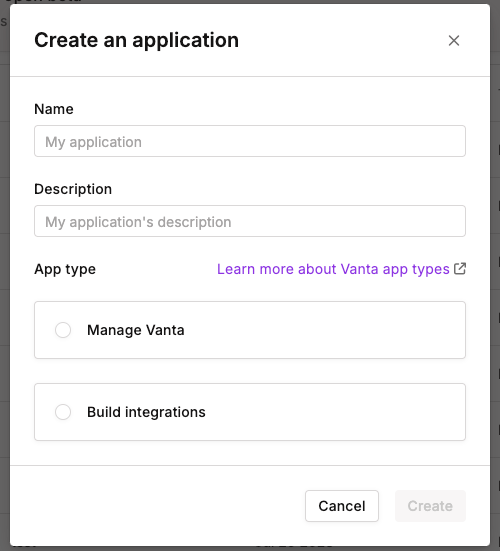
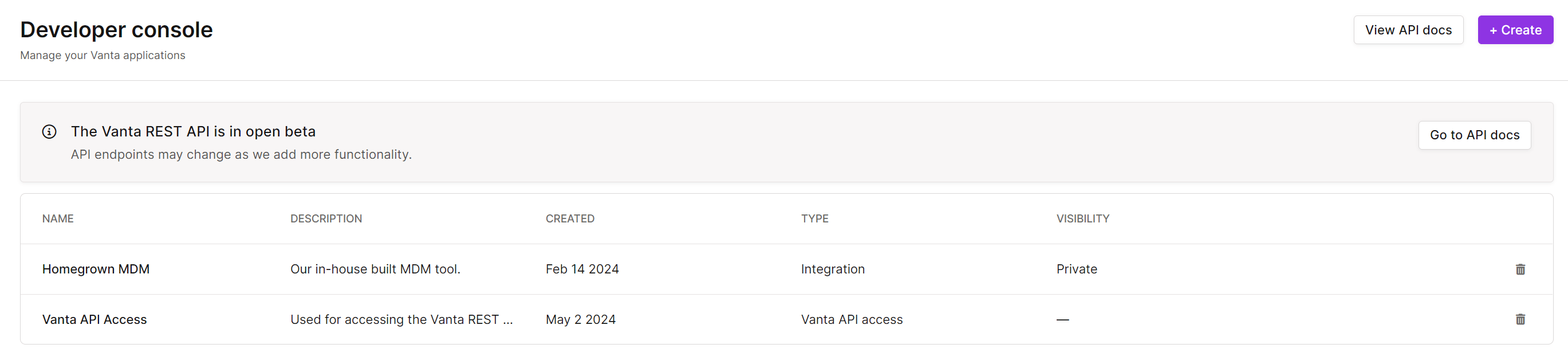 3. Give your application a name and description.
4. Select the **App type** based on your use case:
* **Manage Vanta**: Choose this option to access all Vanta API functionality (excluding the creation of a new private or public integration).
* **Build Integrations**: Choose this option if you want to create new public or private integrations to sync data from non-integrated environments into Vanta.
3. Give your application a name and description.
4. Select the **App type** based on your use case:
* **Manage Vanta**: Choose this option to access all Vanta API functionality (excluding the creation of a new private or public integration).
* **Build Integrations**: Choose this option if you want to create new public or private integrations to sync data from non-integrated environments into Vanta.
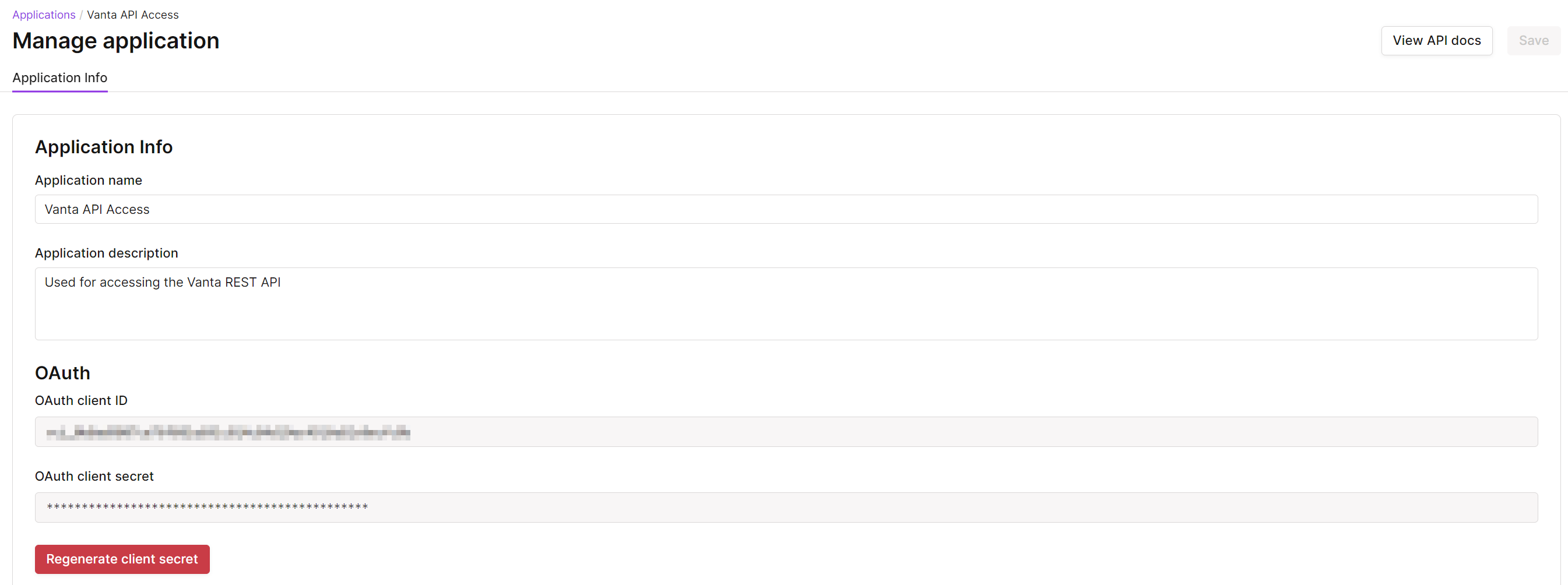
 5. You will see the **client ID** was autogenerated. Copy this value.
6. Click **Generate client secret** to create your **Client Secret**.
5. You will see the **client ID** was autogenerated. Copy this value.
6. Click **Generate client secret** to create your **Client Secret**.
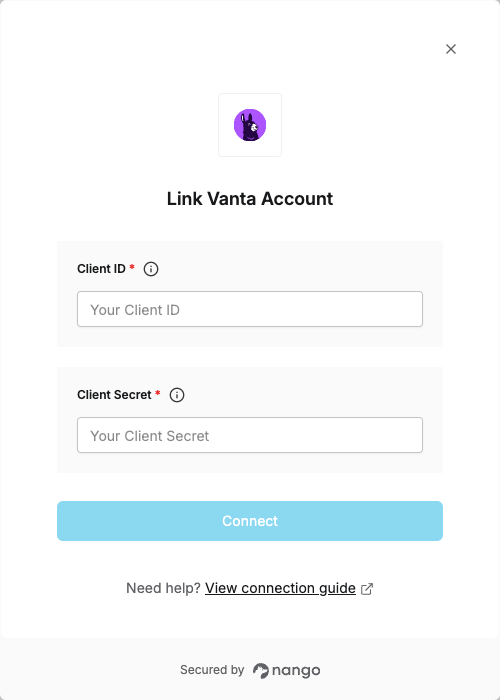
 #### Step 2: Enter credentials in the Connect UI
Once you have your **Client ID** and **Client Secret**:
1. Open the form where you need to authenticate with Vanta.
2. Enter your **Client ID** and **Client Secret** in their designated fields.
3. Submit the form, and you should be successfully authenticated.
#### Step 2: Enter credentials in the Connect UI
Once you have your **Client ID** and **Client Secret**:
1. Open the form where you need to authenticate with Vanta.
2. Enter your **Client ID** and **Client Secret** in their designated fields.
3. Submit the form, and you should be successfully authenticated.
 You are now connected to Vanta.