> ## Documentation Index
> Fetch the complete documentation index at: https://nango-wari-migrated-bigcommerce-docs.mintlify.site/llms.txt
> Use this file to discover all available pages before exploring further.
# Certn - How do I link my account?
# Overview
To authenticate with Certn, you will need:
1. **API Key** - A key that grants Nango permission to interact with Certn's APIs resources and services.
This guide will walk you through generating the API Key within Certn.
## Prerequisites:
* You should have a registered account with Certn. Create one on [Certn Getting Started page](https://lime.certn.co/welcome/signUp/).
* Permission to generate an **API Key**.
#### Step 1: Creating an API key
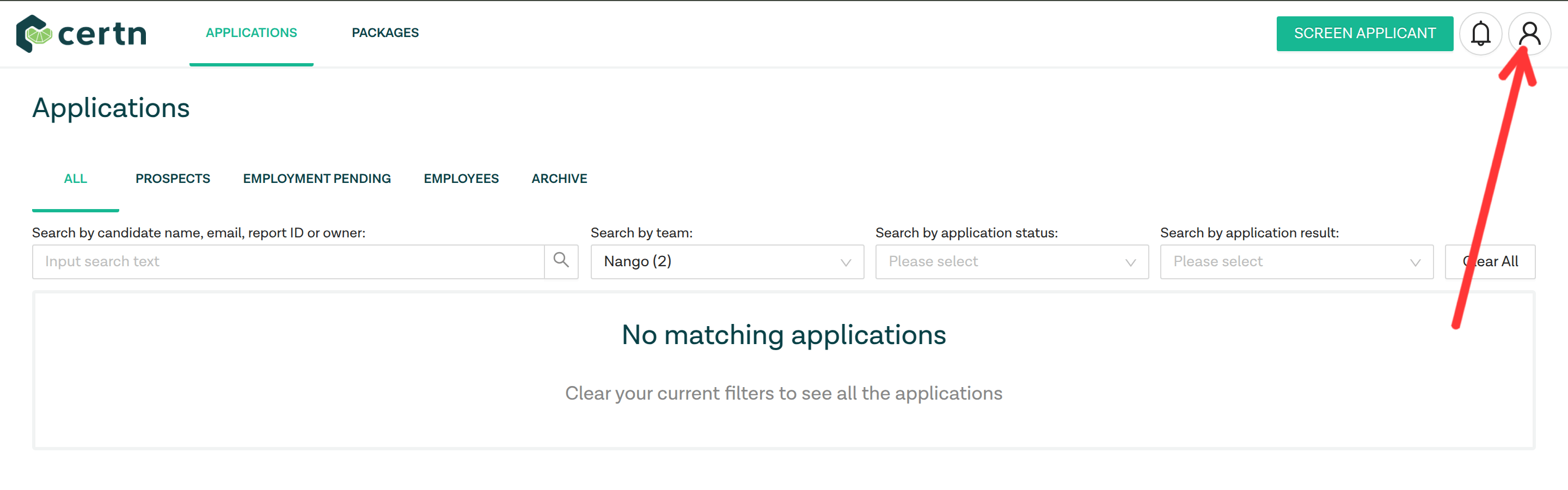
1. **Log in** to your Certn dashboard and click on the **Profile** icon on the top right corner of the screen.
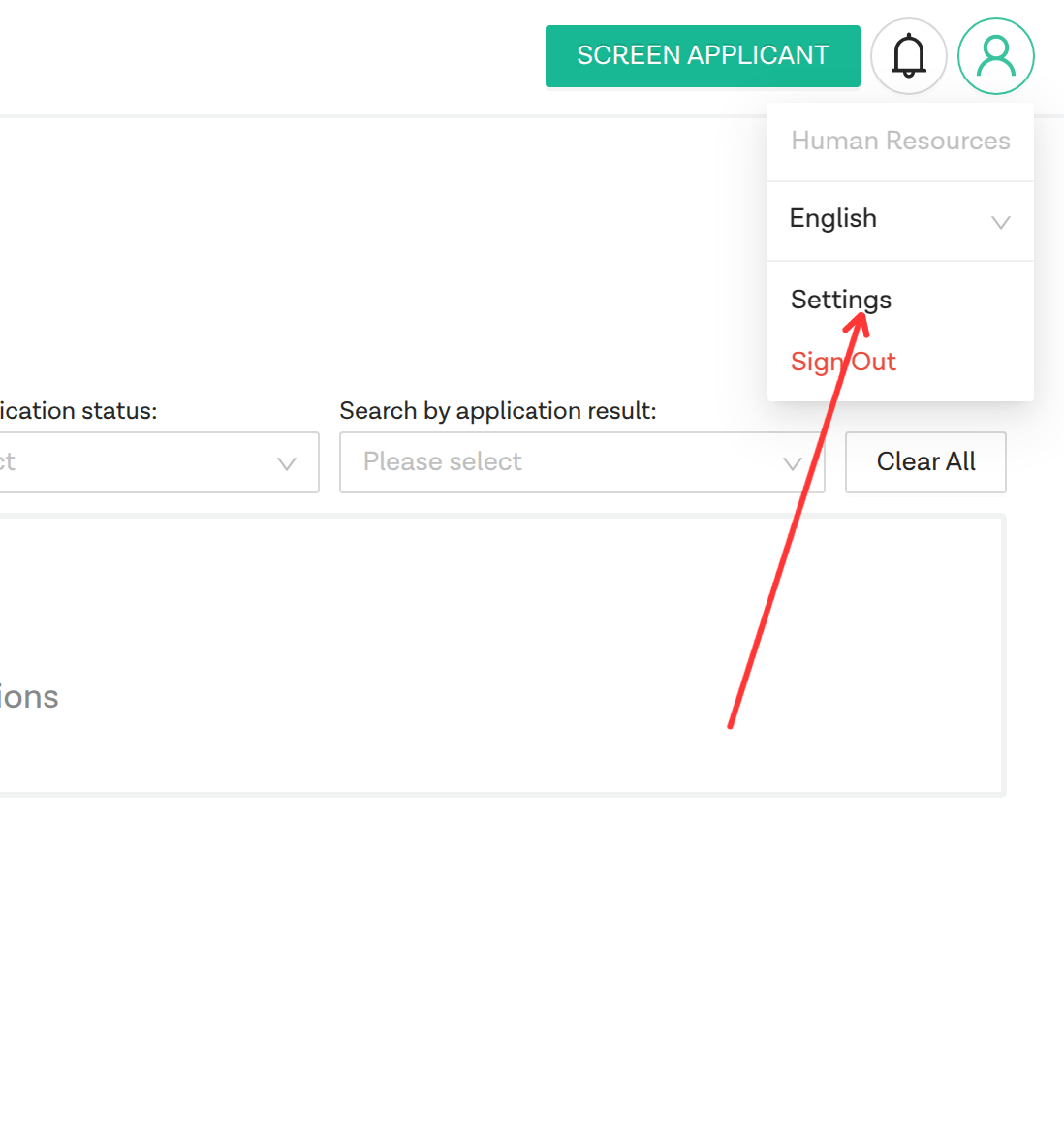
 2. Click on the **Settings** option from the dropdown menu.
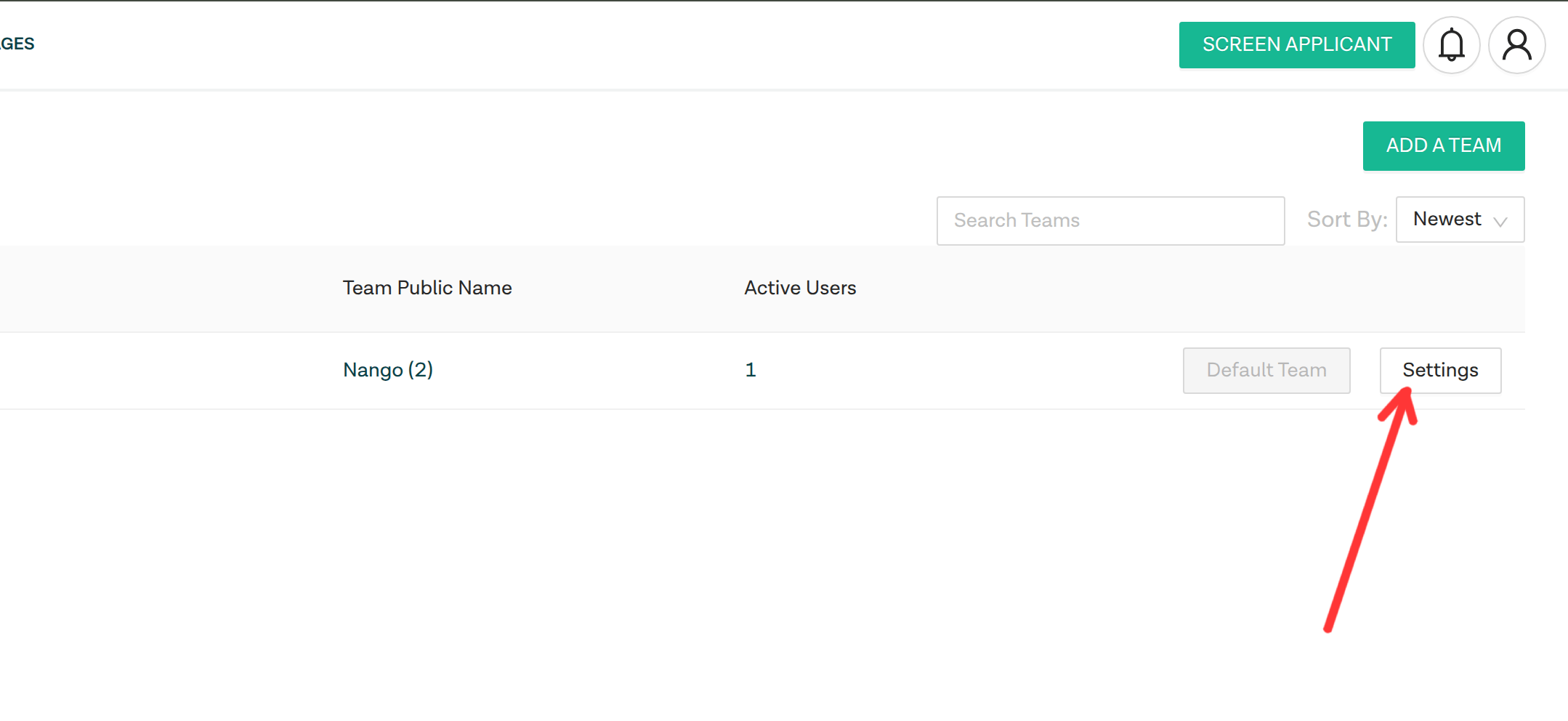
 3. You should see a list of teams you are a part of. On the team you are interested in, click on the **Settings** button.
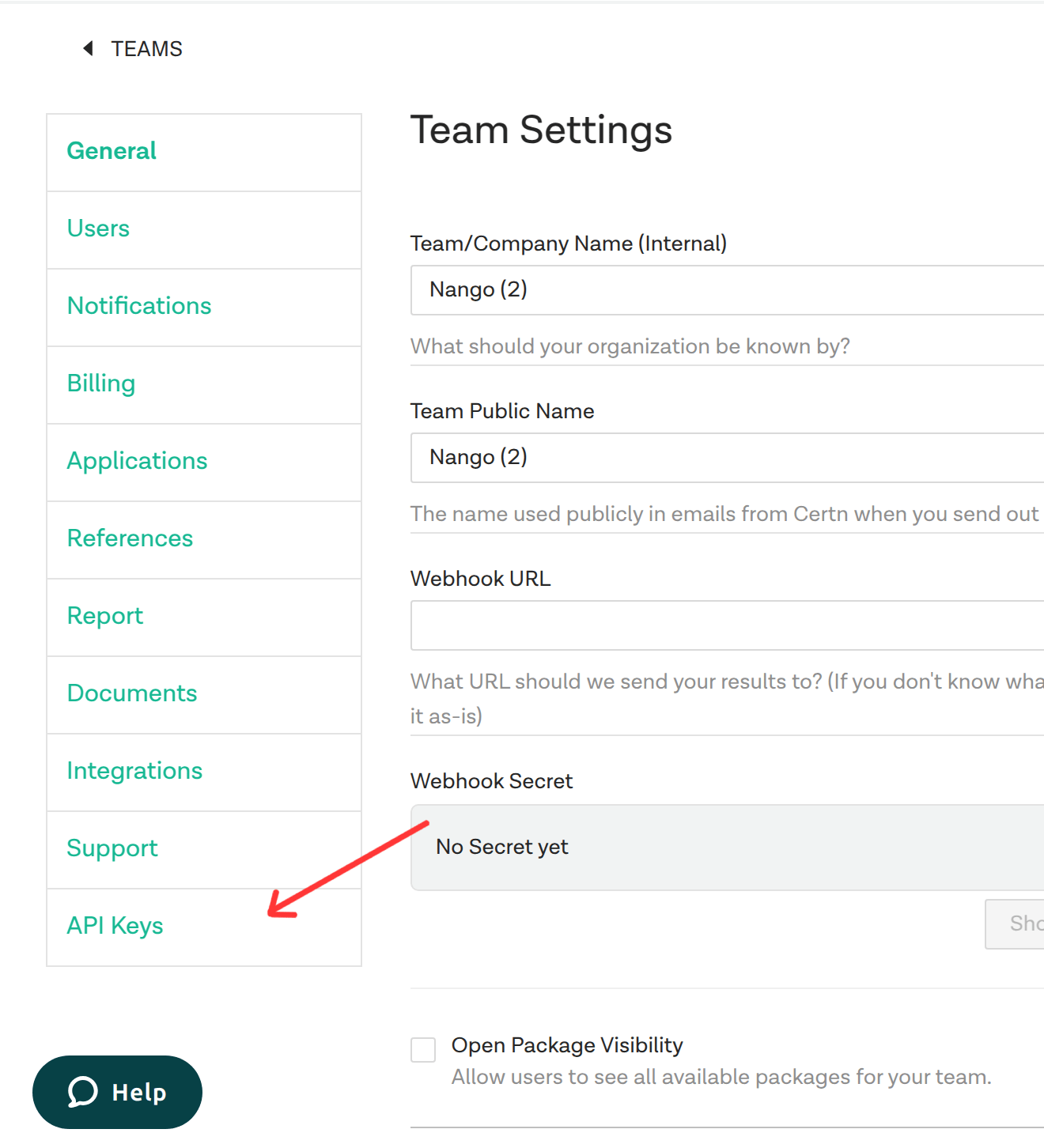
 4. You will be redirected to the team settings page. Click on the **API Keys** tab on the bottom left corner of the screen.
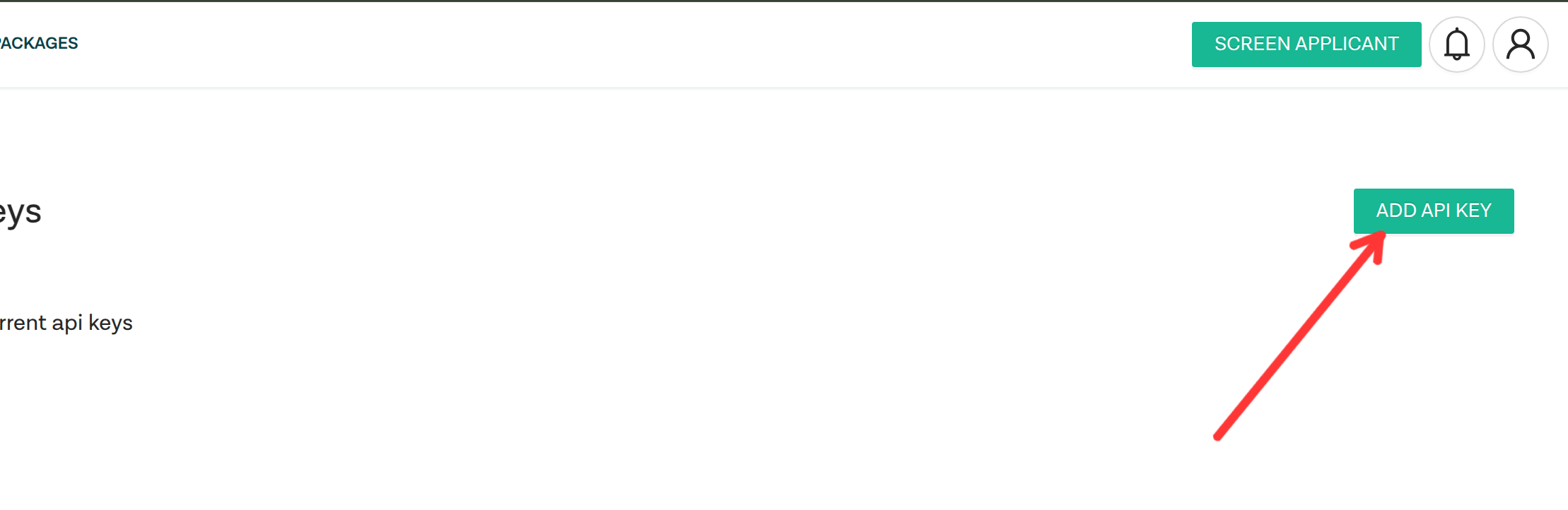
 5. Click on the **ADD API KEY** button.
 6. The newly created API Key will appear in the list of API Keys. Hover on the API Key and click on it to copy the API Key to your clipboard.
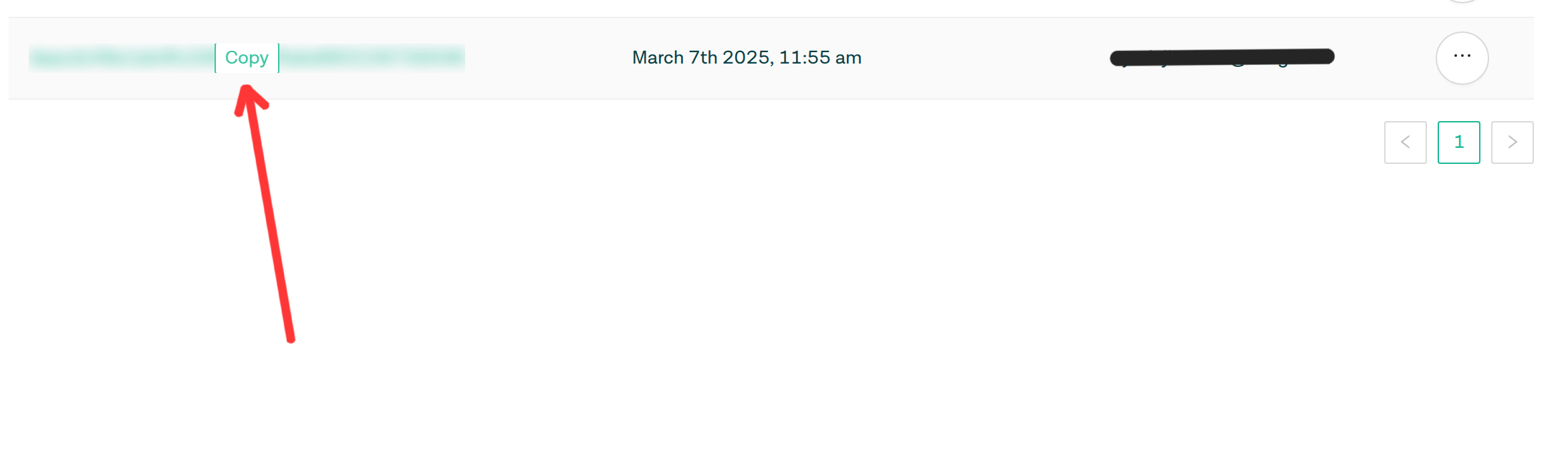 **Note:** It is important to store this key securely as it will not be visible again once you leave the API Key page.
#### Step 2: Connect Your Certn Account
**Note:** It is important to store this key securely as it will not be visible again once you leave the API Key page.
#### Step 2: Connect Your Certn Account
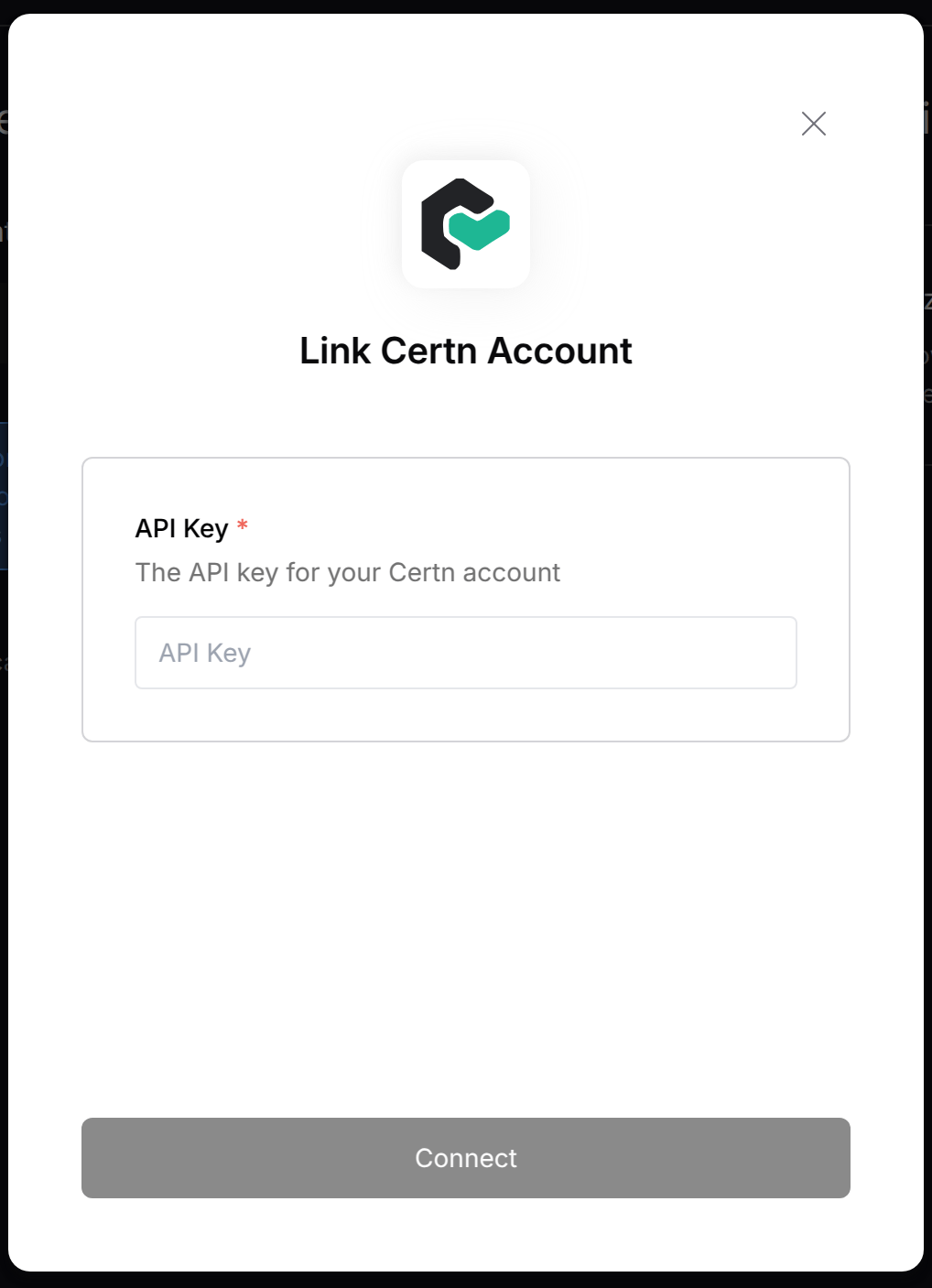 To authenticate using your API credentials, navigate to the Certn authentication form.
Enter your credentials as follows:
* API Key: Your API Key
Click "Connect" to complete the authentication.
Note: Make sure to match the credentials exactly as shown above - the field names in the form may differ from your Certn dashboard.
To authenticate using your API credentials, navigate to the Certn authentication form.
Enter your credentials as follows:
* API Key: Your API Key
Click "Connect" to complete the authentication.
Note: Make sure to match the credentials exactly as shown above - the field names in the form may differ from your Certn dashboard.