> ## Documentation Index
> Fetch the complete documentation index at: https://nango-wari-migrated-bigcommerce-docs.mintlify.site/llms.txt
> Use this file to discover all available pages before exploring further.
# Kandji - How do I link my account?
# Overview
To authenticate with Kandji, you need two key pieces of information:
1. **Subdomain** - The subdomain to your Kandji instance.
2. **API Token** - A key that grants Nango permission to interact with Kandji's APIs resources and services.
This guide will walk you through obtaining both the API Token and Subdomain within Kandji.
### Prerequisites:
* You must have a Kandji account.
### Instructions:
#### Step 1: Finding Your Subdomain
1. Login to your [Kandji](https://www.kandji.io/login/) account.
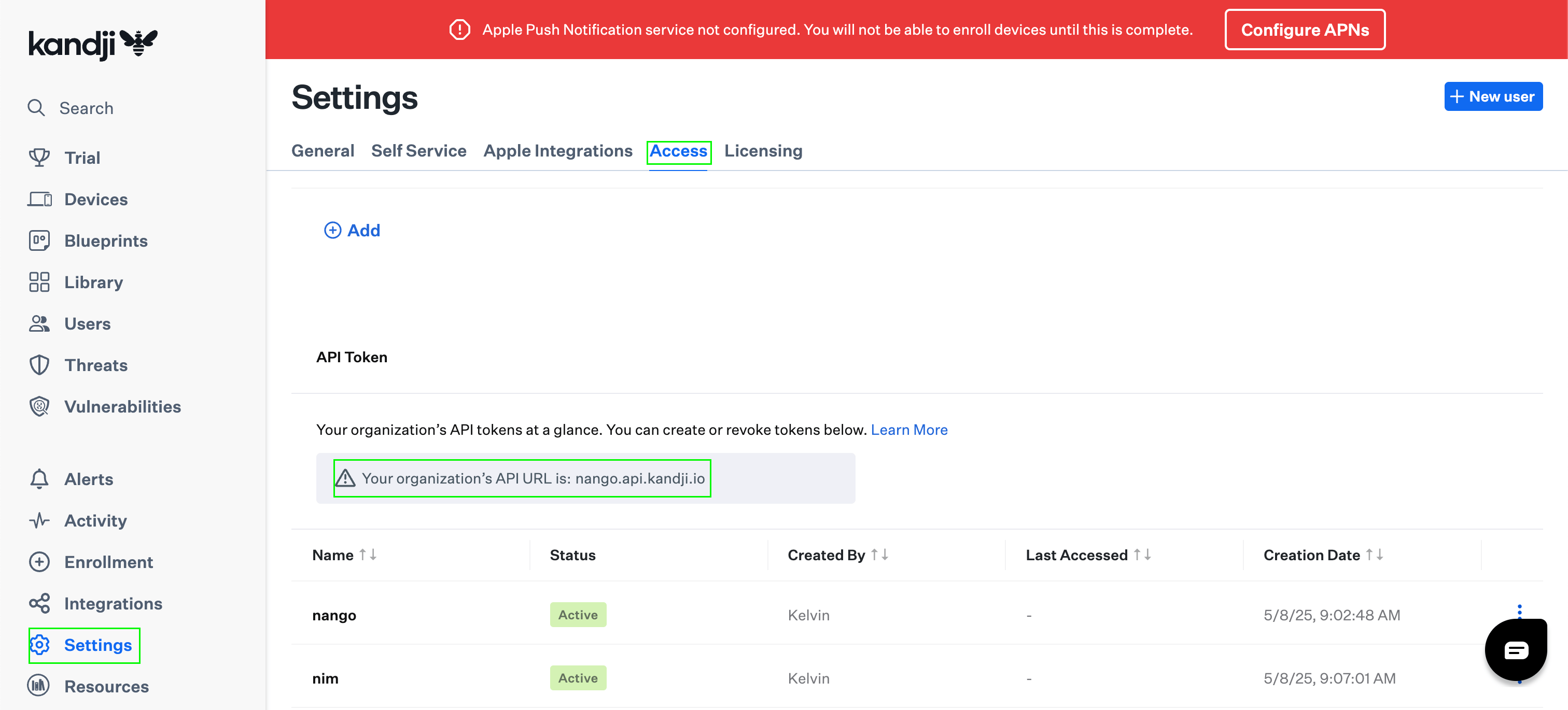
2. Navigate to **Settings** > **Access**.
3. Scroll to the bottom of the page to find the **API Token** section. Your **Subdomain** is the text that appears before `.kandji.io`. In the example below, the Subdomain is `nango.api`.
 #### Step 2: Generating Your API Token
1. Within the same **API Token** section, click the **Add API Token** button to create a new **API Token**.
#### Step 2: Generating Your API Token
1. Within the same **API Token** section, click the **Add API Token** button to create a new **API Token**.
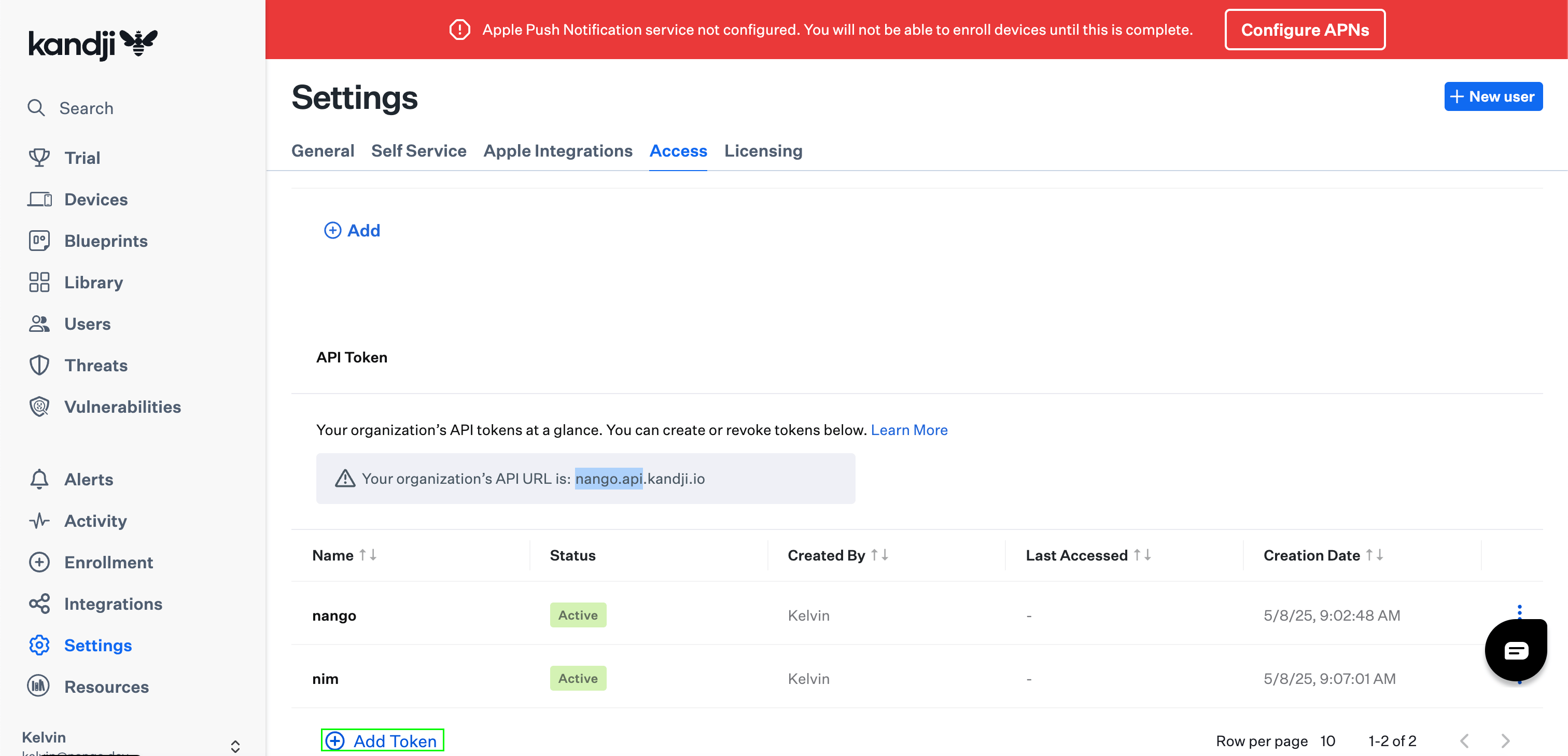 2. Provide a **Name** and **Description** for your **API Token**.
3. Click **Create**.
2. Provide a **Name** and **Description** for your **API Token**.
3. Click **Create**.
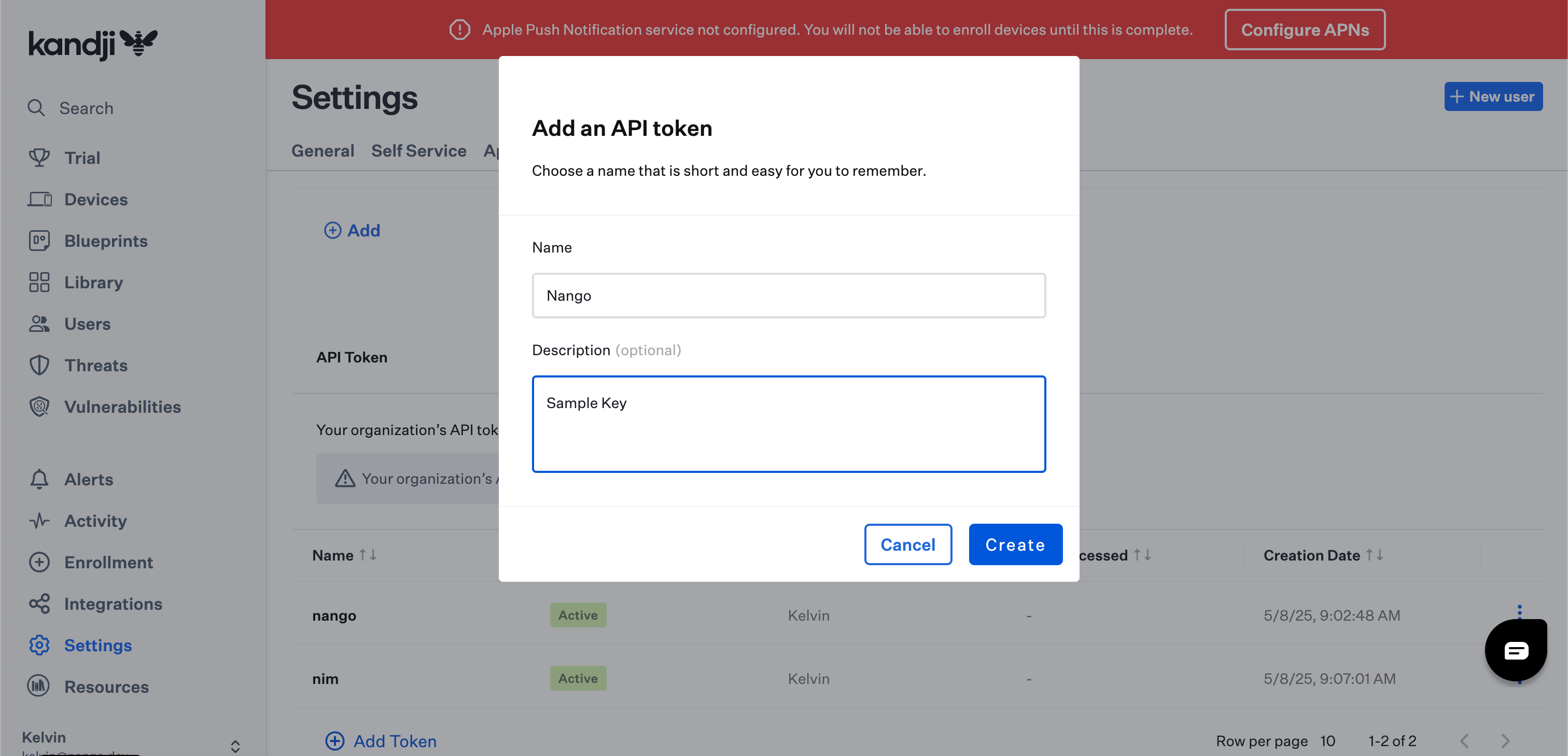 4. Kandji will display a modal with the **API Token**. Click the visibility symbol to expose it or use the **Copy Token** button to copy the **API Token** to your clipboard.
5. Check the **I have copied** checkbox and click **Next**.
4. Kandji will display a modal with the **API Token**. Click the visibility symbol to expose it or use the **Copy Token** button to copy the **API Token** to your clipboard.
5. Check the **I have copied** checkbox and click **Next**.
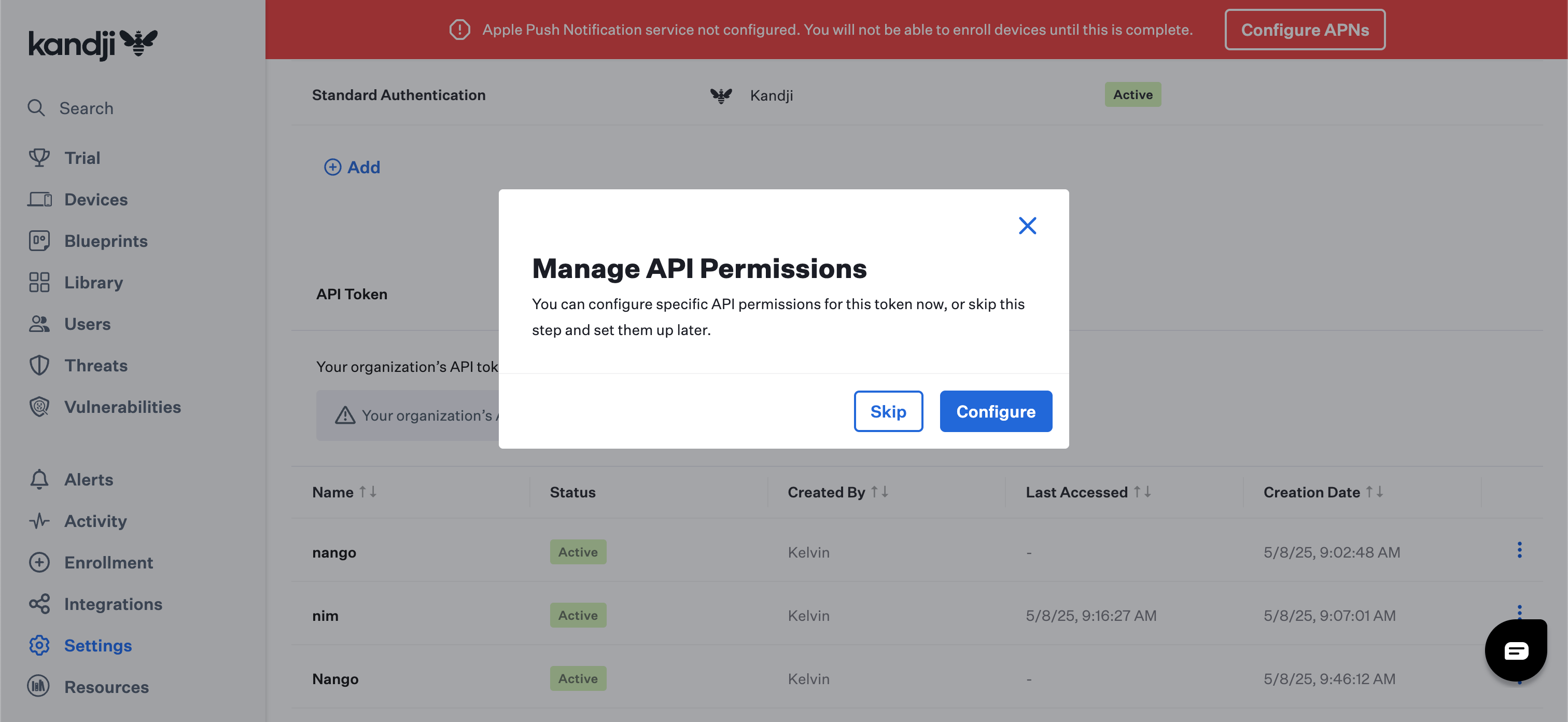
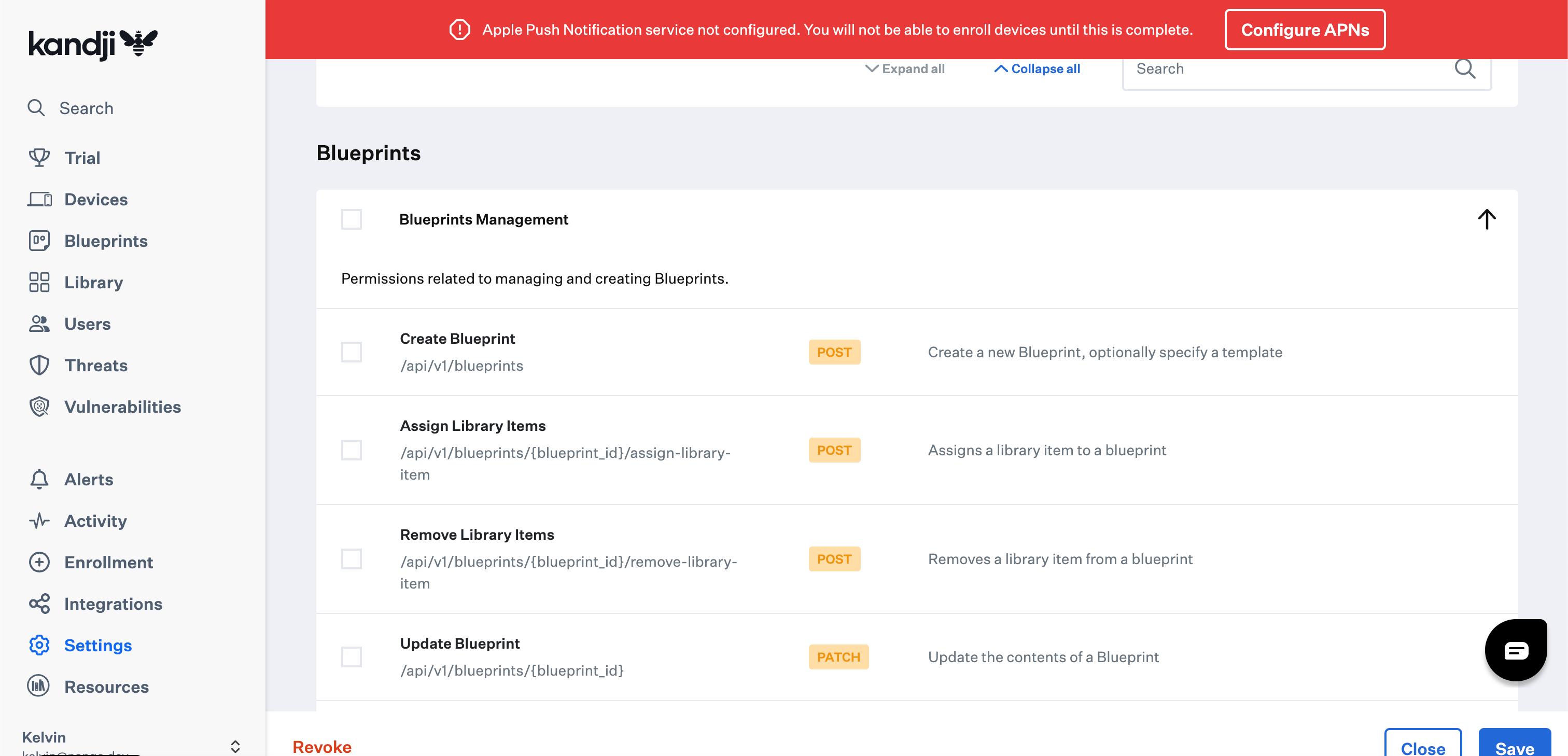
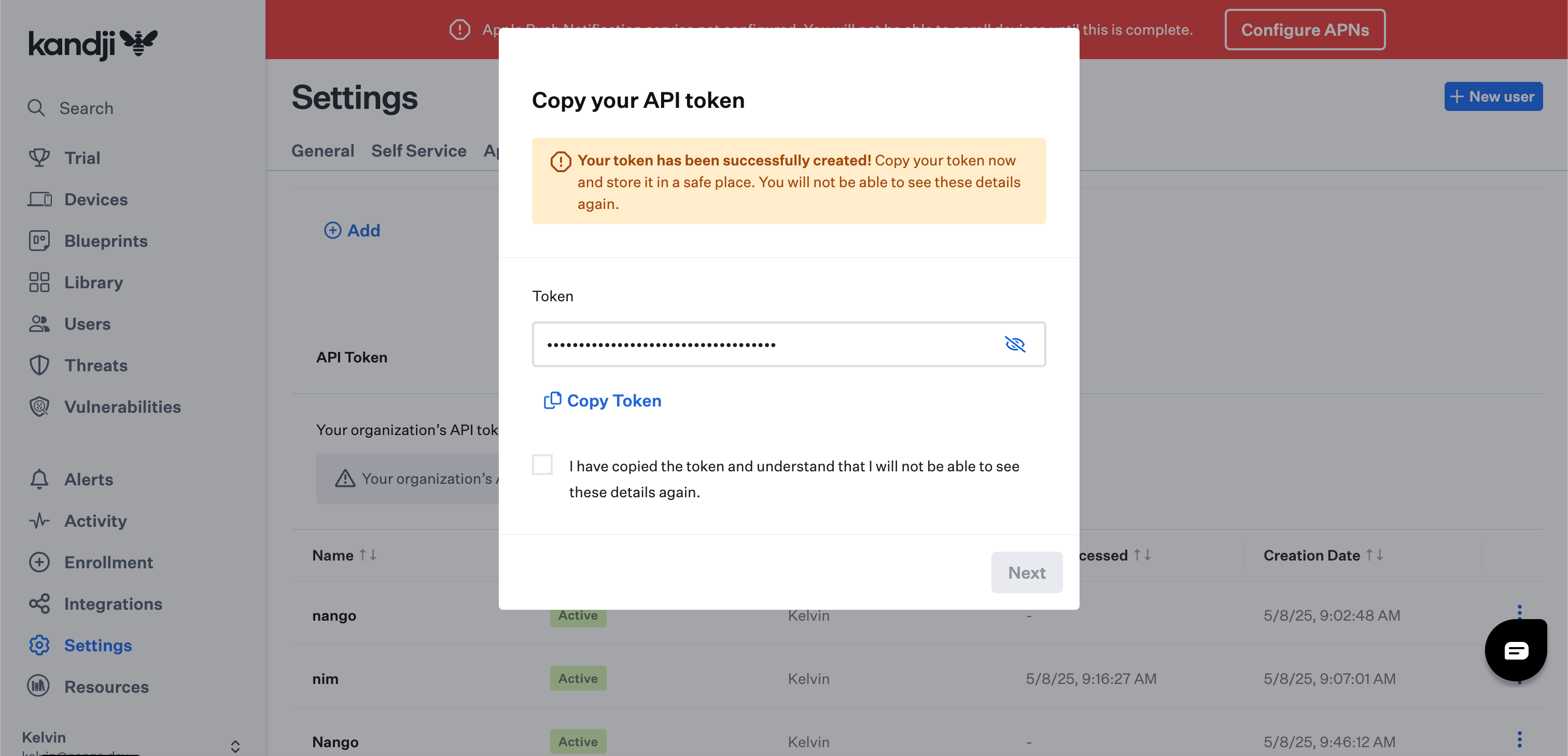 6. Click **Configure** to manage the API permissions for this specific token or **Skip** to change them later.
 #### Step 3: Enter credentials in the Connect UI
Once you have both the **Subdomain** and **API Token**:
1. Open the form where you need to authenticate with Kandji.
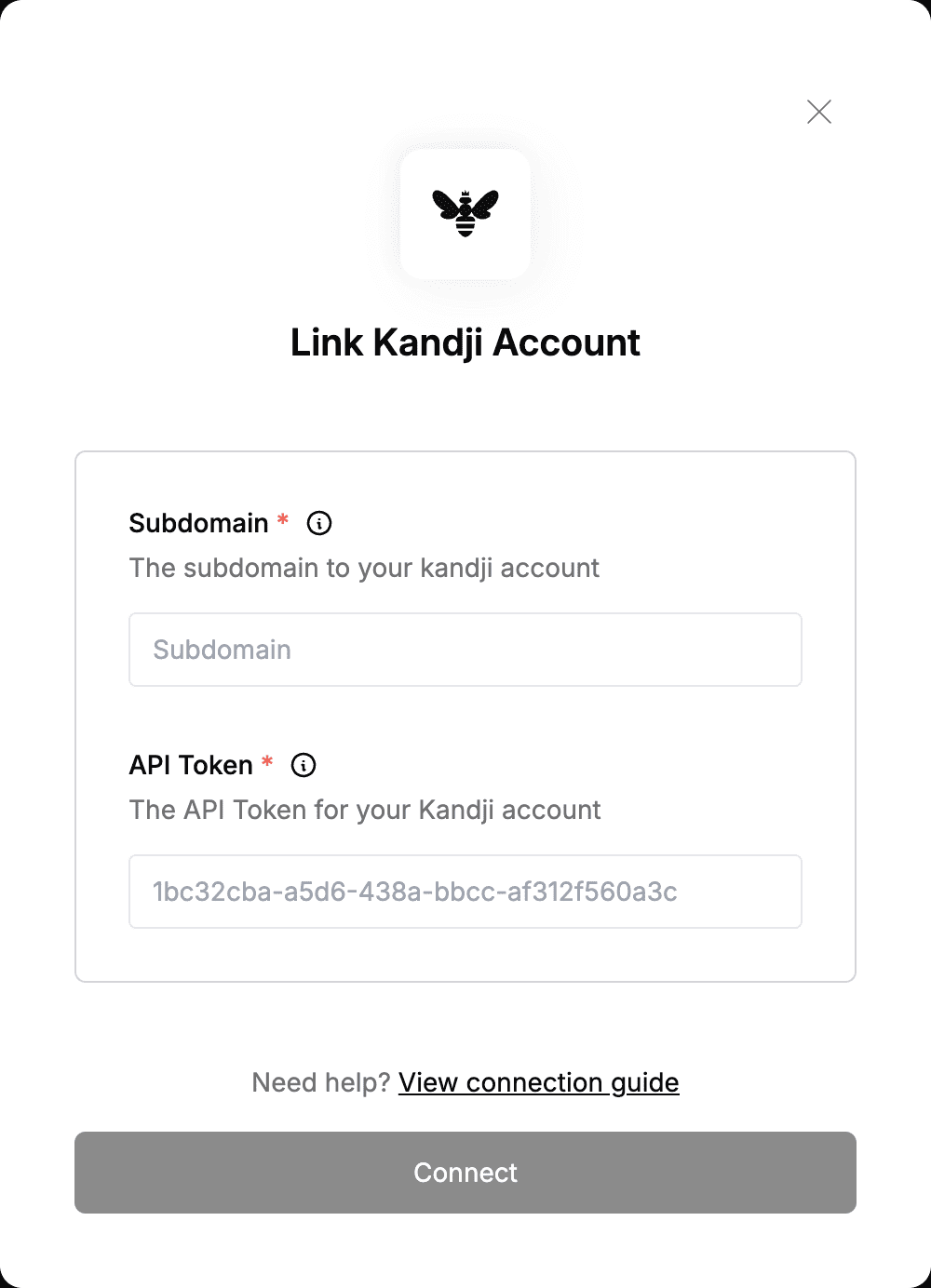
2. Enter your **Subdomain** and **API Token** in their respective fields.
3. Submit the form, and you should be successfully authenticated.
#### Step 3: Enter credentials in the Connect UI
Once you have both the **Subdomain** and **API Token**:
1. Open the form where you need to authenticate with Kandji.
2. Enter your **Subdomain** and **API Token** in their respective fields.
3. Submit the form, and you should be successfully authenticated.
 You are now connected to Kandji.