> ## Documentation Index
> Fetch the complete documentation index at: https://nango-wari-migrated-bigcommerce-docs.mintlify.site/llms.txt
> Use this file to discover all available pages before exploring further.
# Marketo - How do I link my account?
# Overview
To authenticate with Marketo, you need these key pieces of information:
1. **Client ID** - Your Marketo Access Client ID
2. **Client Secret** - Your Marketo Client Secret
3. **Domain** - Your Marketo domain (xxx.mktorest.com)
4. **Identity URL** - Your Marketo domain (xxx.mktorest.com/identity/oauth/token)
This guide will walk you through finding or creating those credentials within Marketo.
### Prerequisites:
* You must set up an account with Marketo.
#### Step 1: Finding Marketo Client ID
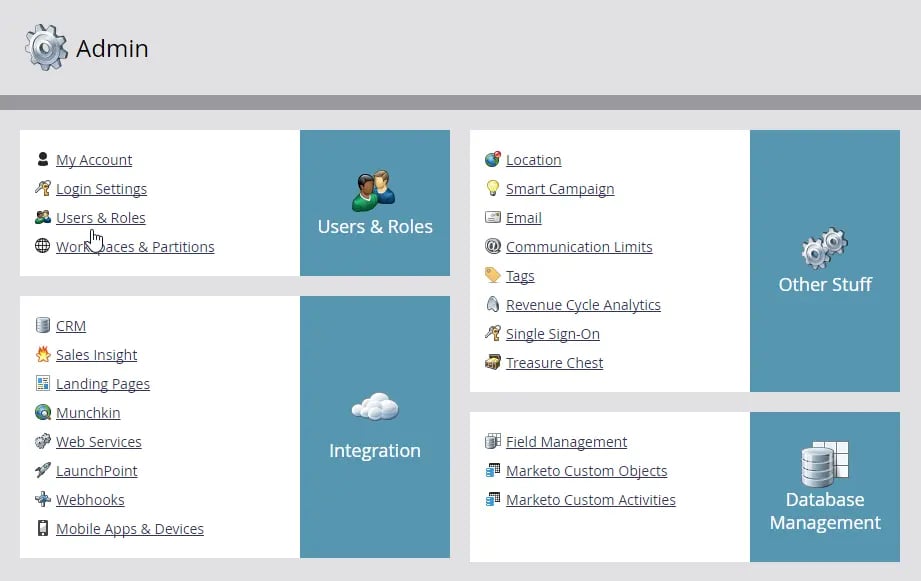
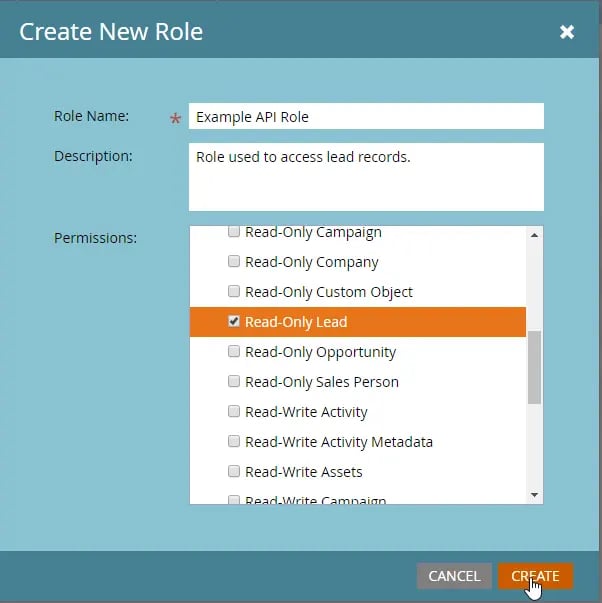
1. Create an API role (if not already created) and give it the `Read-Only Lead` permission with a descriptive name, then click `Create`.
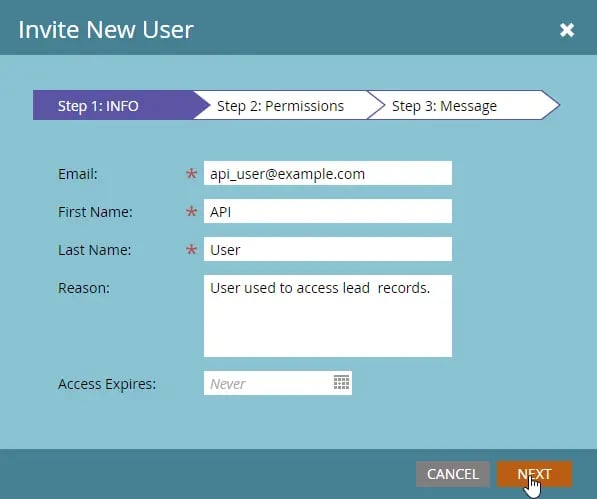
 2. Go back to the Users tab and click `Invite New User`. Give your user a descriptive name that indicates it is an API user, and an email address, then click `Next`.
 3. Proceed to check the `API Only` option and award your user the API role that you created and click `Next`.
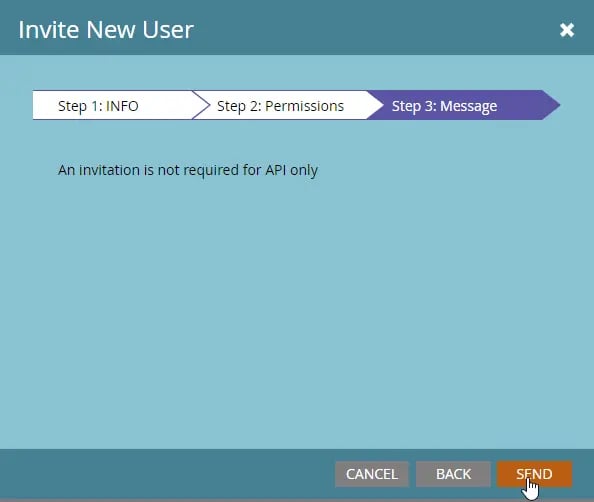
4. To complete the user creation process, click `Send`.
3. Proceed to check the `API Only` option and award your user the API role that you created and click `Next`.
4. To complete the user creation process, click `Send`.
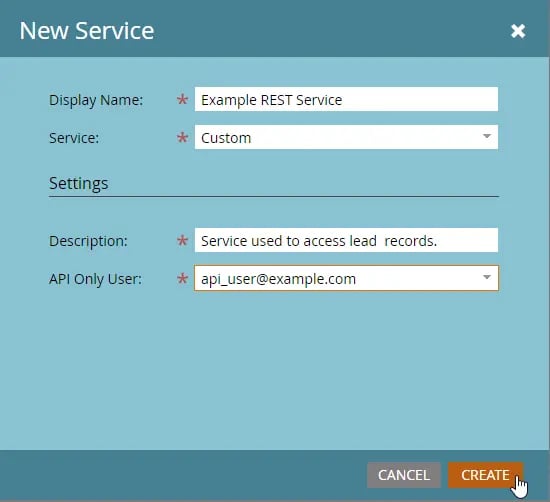
 5. Navigate to `LaunchPoint` > `New` and `New Service`. Give your service a descriptive name and select Custom from the Service dropdown menu. Give it a description, then select your new user from the API Only User dropdown menu and click `Create`.
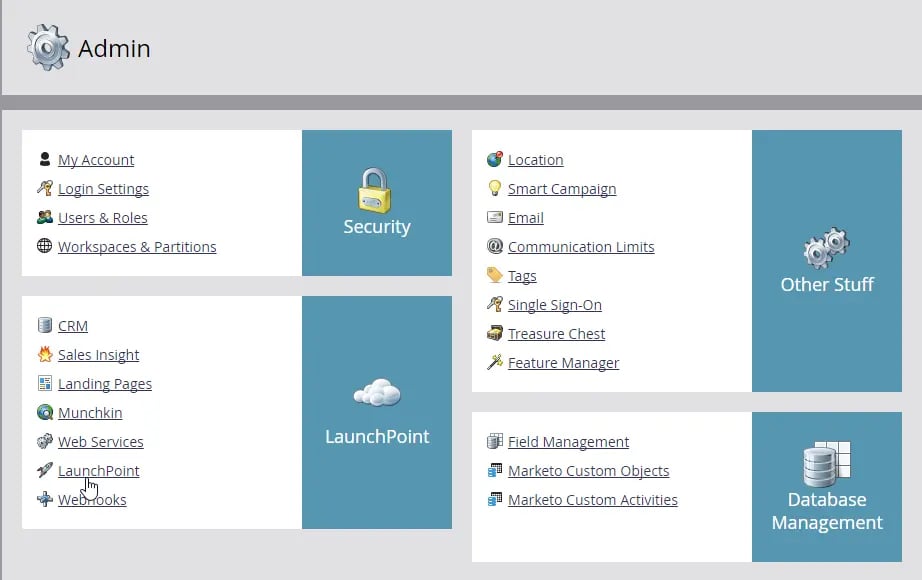
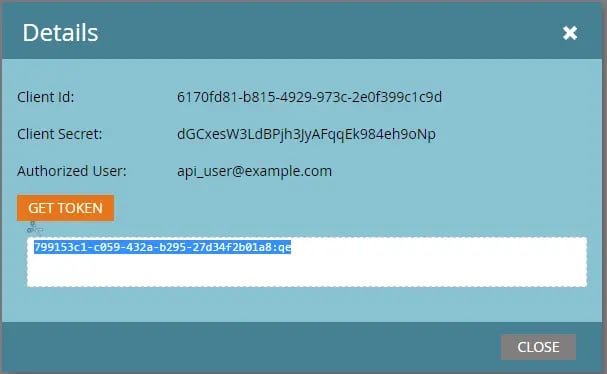
 6. Navigate to `Admin` > `Integration` > `LaunchPoint` and click `View Details` for your new service to access the `Client ID` and `Client Secret`.
 #### Step 2: Get Your Client Secret
* From the previous step, also securely store your `Client Secret`.
#### Step 3: Find Your Domain and Identity URL
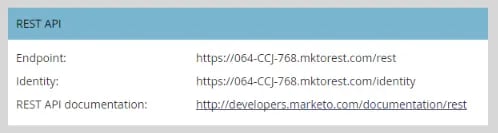
1. Next, navigate to `Admin` > `Integration` > `Web Services` to get the endpoint and identity URL.
#### Step 2: Get Your Client Secret
* From the previous step, also securely store your `Client Secret`.
#### Step 3: Find Your Domain and Identity URL
1. Next, navigate to `Admin` > `Integration` > `Web Services` to get the endpoint and identity URL.
 #### Step 4: Connect Your Marketo Account
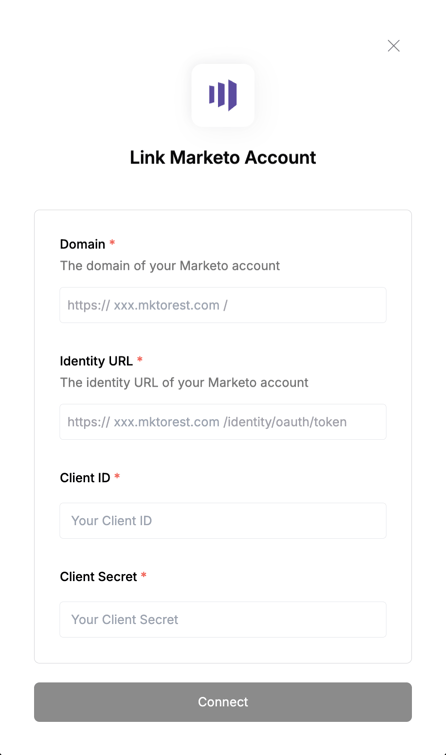 To authenticate using your API credentials, navigate to the Marketo authentication form. Enter your credentials as follows:
* Client ID: Your Marketo Access Key
* Client Secret: Your Marketo Access Key Secret
* Domain: Your Marketo domain
* Identity URL: Your Marketo domain
Click "Connect" to complete the authentication.
To authenticate using your API credentials, navigate to the Marketo authentication form. Enter your credentials as follows:
* Client ID: Your Marketo Access Key
* Client Secret: Your Marketo Access Key Secret
* Domain: Your Marketo domain
* Identity URL: Your Marketo domain
Click "Connect" to complete the authentication.