> ## Documentation Index
> Fetch the complete documentation index at: https://nango-wari-migrated-bigcommerce-docs.mintlify.site/llms.txt
> Use this file to discover all available pages before exploring further.
# Perimeter81 - How do I link my account?
# Overview
To authenticate with Perimeter81, you need one key piece of information:
1. **API Key** - Your Perimeter81 API Key
This guide will walk you through finding or creating those credentials within Perimeter81.
### Prerequisites:
* You must set up an Enterprise account with Perimeter81.
#### Step 1: Finding Your Perimeter81 Domain and Perimeter81 API Key
1. First, sign in to your Harmony SASE Admin Console with either the Admin or Manager role and navigate to **Settings** -> **API Support**
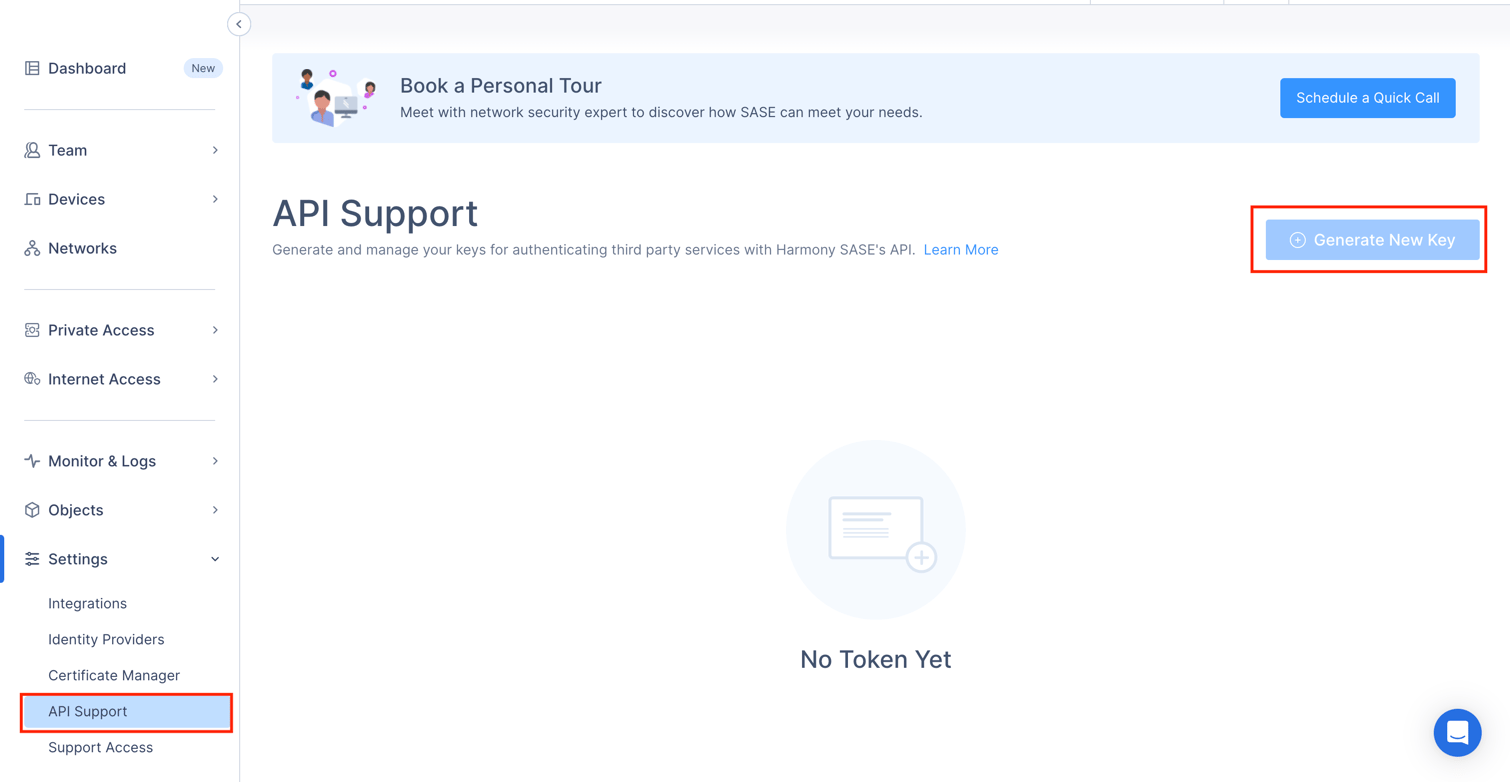 2. At the top right corner, click **+Generate New Key**
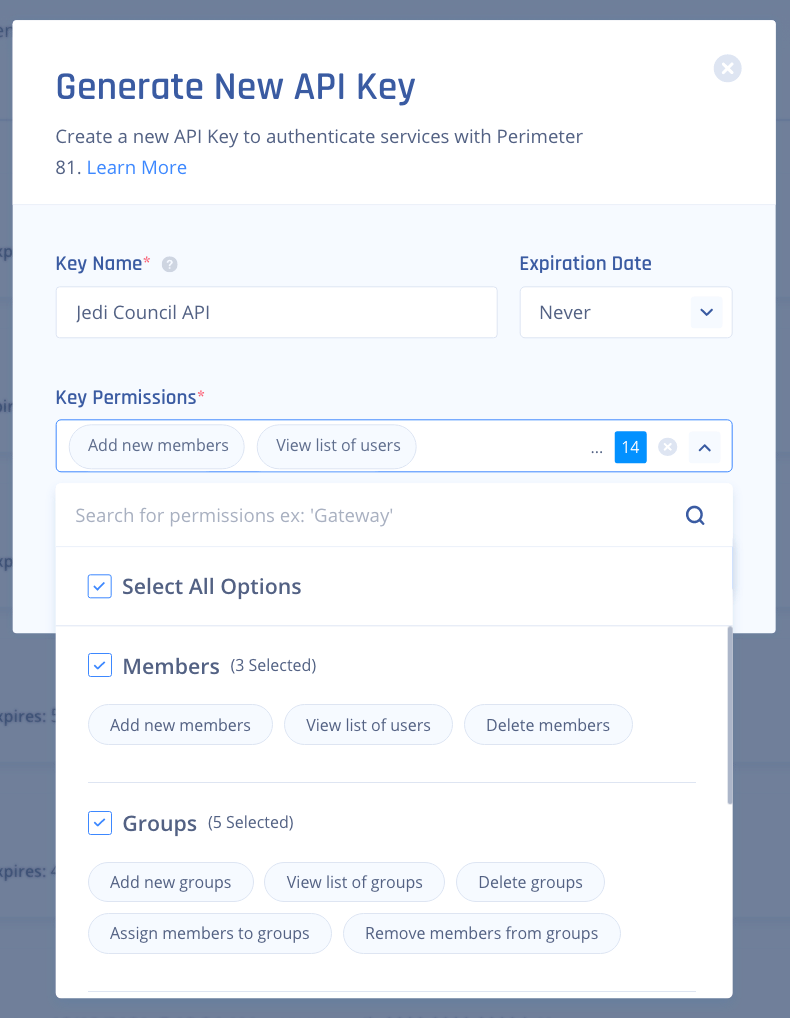
3. Enter the following details:
* **Key Name** - Write a logical name to help you identify the Key later.
* **Expiration Date** - Select a date for the Access Token to expire. Any API requests done after this date will be denied.
* **Key Permissions** - Choose which Actions will be possible using this specific API Key.
2. At the top right corner, click **+Generate New Key**
3. Enter the following details:
* **Key Name** - Write a logical name to help you identify the Key later.
* **Expiration Date** - Select a date for the Access Token to expire. Any API requests done after this date will be denied.
* **Key Permissions** - Choose which Actions will be possible using this specific API Key.
 4. Once you have created your key, click the eye icon (👁) to reveal the Key.
 Note: Securely copy and store your API key.
#### Step 2: Connect Your Perimeter81 Account
To authenticate using your API credentials, navigate to the Perimeter81 authentication form.
Enter your credentials as follows:
* Domain: Your permiter81 domain (one of `perimeter81.com` for US and `eu.sase.checkpoint.com` for EU)
* API Key: Your API key
Note: Securely copy and store your API key.
#### Step 2: Connect Your Perimeter81 Account
To authenticate using your API credentials, navigate to the Perimeter81 authentication form.
Enter your credentials as follows:
* Domain: Your permiter81 domain (one of `perimeter81.com` for US and `eu.sase.checkpoint.com` for EU)
* API Key: Your API key
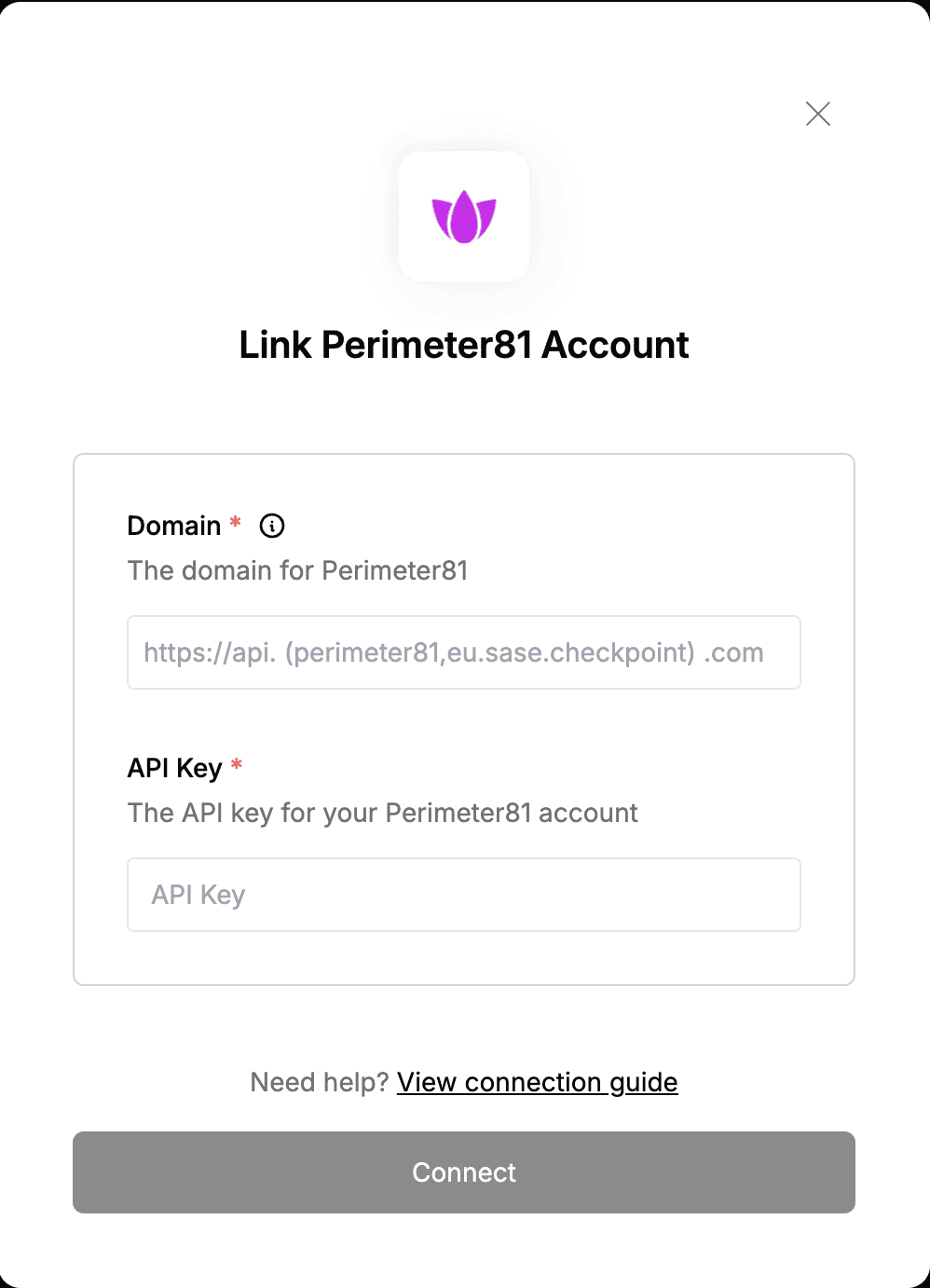 Click "Connect" to complete the authentication.